How to Roll Out Multi-Factor Authentication Across Your Business
Learn how to complete a multi-factor authentication setup across your business with this practical, step-by-step guide for GTA and Simcoe County SMB owners.
Key Takeaways
- Audit every business account before rolling out MFA to avoid gaps in coverage.
- Authenticator apps are more secure than SMS codes and work without a cell signal.
- Pilot MFA with a small group first to catch problems before a full rollout.
- Communicate the change clearly so staff understand the reason, not just the steps.
- MFA is one of the most effective controls for preventing unauthorised account access.
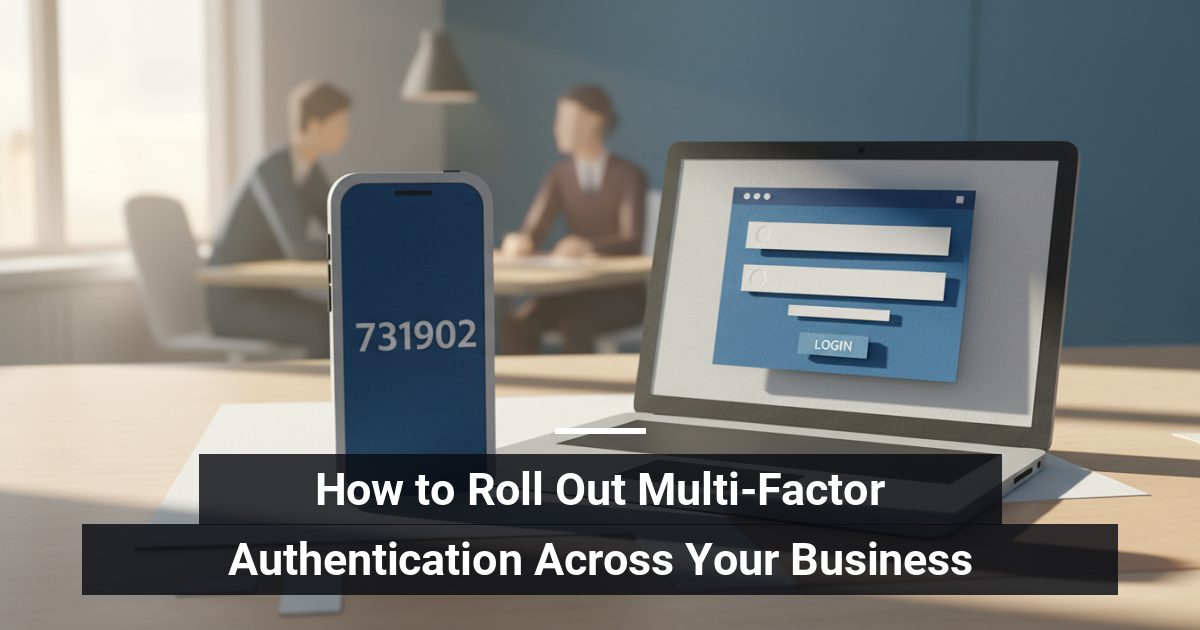
Multi-factor authentication setup means requiring staff to verify their identity with a second method — such as an app-generated code — beyond just a password. Done correctly, it blocks the vast majority of credential-based attacks without meaningfully slowing down your team's daily work, making it one of the most practical security steps any small business can take.
Why Does MFA Matter for Your Business?
Passwords alone are no longer a reliable defence. They get reused, guessed, or exposed in breaches your business had nothing to do with. MFA adds a second lock on the door, so a stolen password by itself cannot open anything. For businesses in the GTA and Simcoe County where remote and hybrid work is common, protecting cloud accounts like Microsoft 365 and Google Workspace is especially important.
Step 1: Audit Every Account Your Business Uses
Before you enable anything, build a complete list of the accounts and platforms your team logs into. Common categories include:
- Email and productivity suites (Microsoft 365, Google Workspace)
- Cloud storage and file-sharing tools
- Accounting and payroll software
- CRM and customer-facing platforms
- Remote access tools and VPNs
Note which accounts already support MFA and which do not. Prioritise accounts that hold sensitive data or financial access first.
How Do You Choose the Right MFA Method?
Not all MFA methods offer the same level of protection. Here is a practical ranking from most to least secure:
- Authenticator apps (such as Microsoft Authenticator or Google Authenticator) — generate time-sensitive codes on a phone, work offline, and resist interception.
- Hardware security keys — physical USB or NFC devices that are nearly impossible to phish, ideal for high-privilege accounts.
- SMS text codes — better than nothing, but vulnerable to SIM-swapping attacks where a criminal convinces your carrier to transfer your number; avoid for your most sensitive accounts.
For most small and mid-sized businesses, authenticator apps strike the right balance between security and ease of use.
Step 2: Pilot With a Small Group Before Full Rollout
Choose five to ten staff members — ideally a mix of technical comfort levels — and enable MFA for their accounts first. This pilot phase is where you will catch setup errors, device compatibility issues, and workflow gaps before they affect your entire team. Document what comes up and adjust your instructions accordingly.
How Should You Communicate the Change to Staff?
Resistance usually comes from surprise, not the technology itself. Send a clear message before the rollout date that covers:
- What MFA is and why your business is implementing it
- Exactly what staff will need to do — download an app, register their device
- Who to contact if they get locked out or need help
Keep the tone practical and reassuring. Avoid technical jargon. A short written guide or a brief walkthrough video goes a long way.
Step 3: Enable MFA and Handle Exceptions Carefully
Work through your account list systematically. Most platforms have MFA settings inside the admin console under security or sign-in options. Set an enrolment deadline and follow up with anyone who has not completed setup by that date.
For staff who share accounts or use legacy systems that do not support MFA, document those exceptions and plan to address them — shared credentials are a separate risk worth fixing on their own timeline.
What About Ongoing Management?
MFA is not a one-time task. When a staff member leaves, revoke their registered devices promptly. When someone gets a new phone, they will need to re-register. Build these steps into your offboarding and device-replacement processes so coverage never quietly lapses. Also confirm that at least one backup recovery method is configured for every account before you complete the rollout.
Ready to Complete Your MFA Rollout?
If you want to make sure your multi-factor authentication setup is complete, correctly configured, and matched to the platforms your business actually uses, our team can walk you through it —
Darryl Cresswell
CEO & President
MYDWARE IT Solutions Inc.